> tldr dddd
Convert and copy a file.
See also: `caligula`.
More information: https://www.gnu.org/software/coreutils/manual/html_node/dd-invocation.html.
- Make a bootable USB drive from an isohybrid file (such as archlinux-xxx.iso) and show the progress:
sudo ddif=path/to/file.iso of=/dev/usb_drive status=progress
- Clone a drive to another drive with 4 MiB block size and flush writes before the command terminates:
sudo dd bs=4M conv=fsync if=/dev/source_drive of=/dev/dest_drive
- Generate a file with a specific number of random bytes by using kernel random driver:
dd bs=100 count=1 if=/dev/urandom of=path/to/random_file
- Benchmark the write performance of a disk:
dd bs=1M count=1024 if=/dev/zero of=path/to/file_1GB
- Create a system backup, save it into an IMG file (can be restored later by swapping if and of), and show the progress:
sudo ddif=/dev/drive_device of=path/to/file.img status=progress
- Check the progress of an ongoing dd operation (run this command from another shell):
progress
I feel like it’s a nice intermediate step when learning the commands. man is great when you already know you have the right tool and you just need to check a flag. A newbie who just left Windows is gonna be so overwhelmed by a lot of manpages, but this does a nice job of easing them in using examples to give the user an idea of what that tool is capable of.


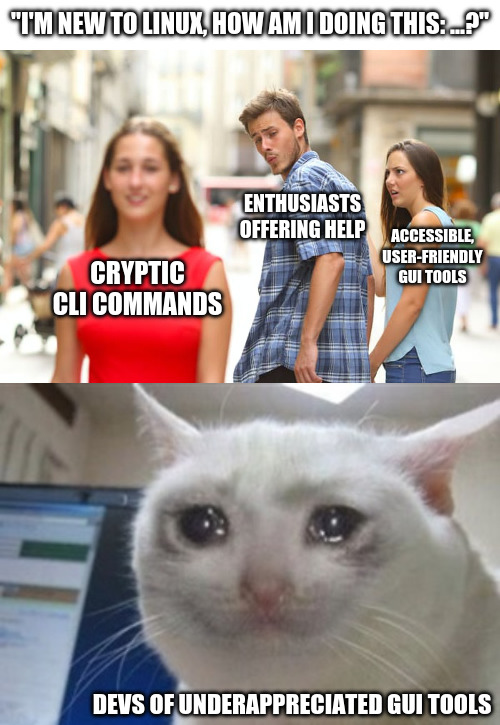
install tldr and then you have easier commands
> tldr dd dd Convert and copy a file. See also: `caligula`. More information: https://www.gnu.org/software/coreutils/manual/html_node/dd-invocation.html. - Make a bootable USB drive from an isohybrid file (such as archlinux-xxx.iso) and show the progress: sudo dd if=path/to/file.iso of=/dev/usb_drive status=progress - Clone a drive to another drive with 4 MiB block size and flush writes before the command terminates: sudo dd bs=4M conv=fsync if=/dev/source_drive of=/dev/dest_drive - Generate a file with a specific number of random bytes by using kernel random driver: dd bs=100 count=1 if=/dev/urandom of=path/to/random_file - Benchmark the write performance of a disk: dd bs=1M count=1024 if=/dev/zero of=path/to/file_1GB - Create a system backup, save it into an IMG file (can be restored later by swapping if and of), and show the progress: sudo dd if=/dev/drive_device of=path/to/file.img status=progress - Check the progress of an ongoing dd operation (run this command from another shell): progressWhy not just read the man page?
I feel like it’s a nice intermediate step when learning the commands.
manis great when you already know you have the right tool and you just need to check a flag. A newbie who just left Windows is gonna be so overwhelmed by a lot of manpages, but this does a nice job of easing them in using examples to give the user an idea of what that tool is capable of.